This guide will walk you through how to format mobile phone numbers in Excel so they upload cleanly to your SMS platform. No scientific notation and no rejected rows.
In short: you select the column containing your numbers, right-click and choose Format Cells, then select Number and set decimal places to 0. That stops Excel from converting long numbers into scientific notation (the E+10 or E+11 you’ve probably seen) and keeps them intact when you save as CSV. For international numbers, you’ll also need to add the country code using the CONCATENATE formula.
The three-step guide below walks you through the whole process to excel-lently format your phone numbers – from cleaning your data, to placing it in the right columns, to formatting the numbers so they’re ready for upload. There’s also a section at the end for anyone sending to international numbers.
Step 1: Clear out the data you don’t need
Firstly, remove anything from your spreadsheet that you don’t want to be uploaded into the FireText platform.
If you’re doing this, be sure to actually ‘delete’ columns instead of simply hiding them (to delete, right click the whole column > press ‘delete’). And if you’re removing unnecessary information ready to upload to FireText, always keep a backup file of all your data!
Step 2: Place your data in the columns
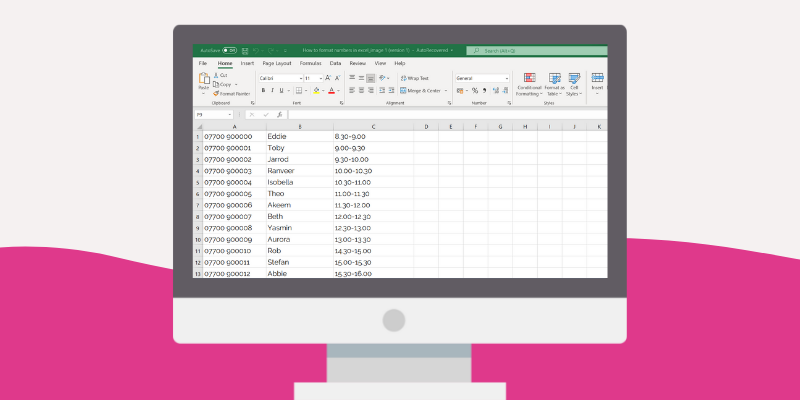
You have the option to upload your recipients’ name, number and 3 custom fields to personalise your messages.
You can pick and choose from these options which data you would like to upload, but obviously mobile numbers are essential.
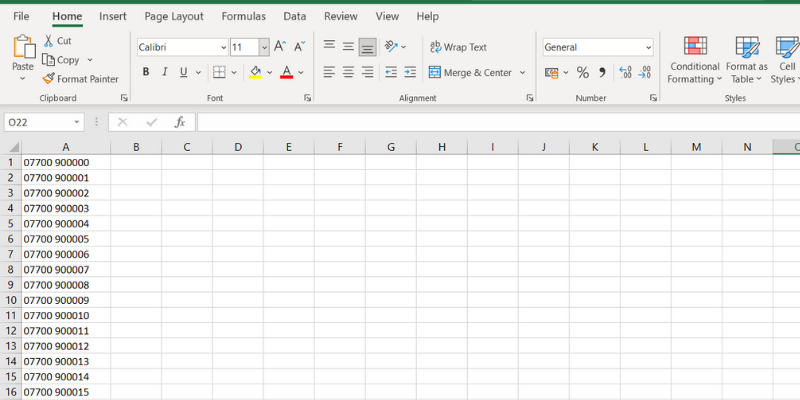
If you only want to upload numbers, that’s absolutely fine. Just like the example below.
Step 3: Format your phone numbers correctly
When saving an Excel document as a CSV file, it will save it exactly how it looks (or, as we like to say, ‘save what you see’).
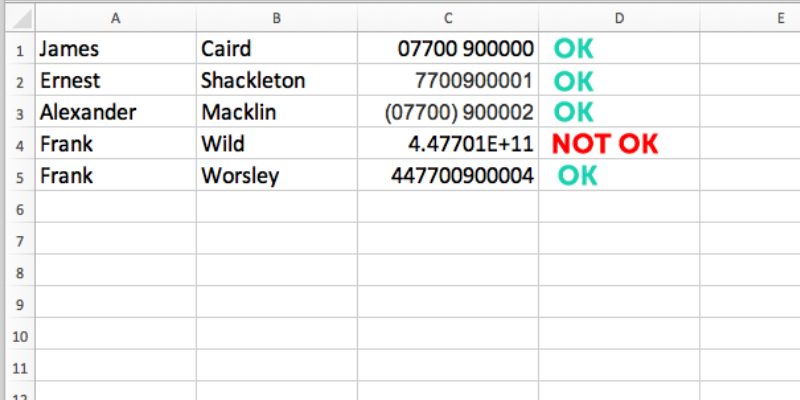
Although Excel is great with numbers, when it comes to phone numbers it tends to struggle and will often shorten it – so you may see an E+10 or E+11 at the end.
Because this is how the CSV will save it, the FireText platform is clever enough to detect that these numbers aren’t correct – preventing you from uploading them.
So you need to ensure that the numbers are formatted correctly. To do this:
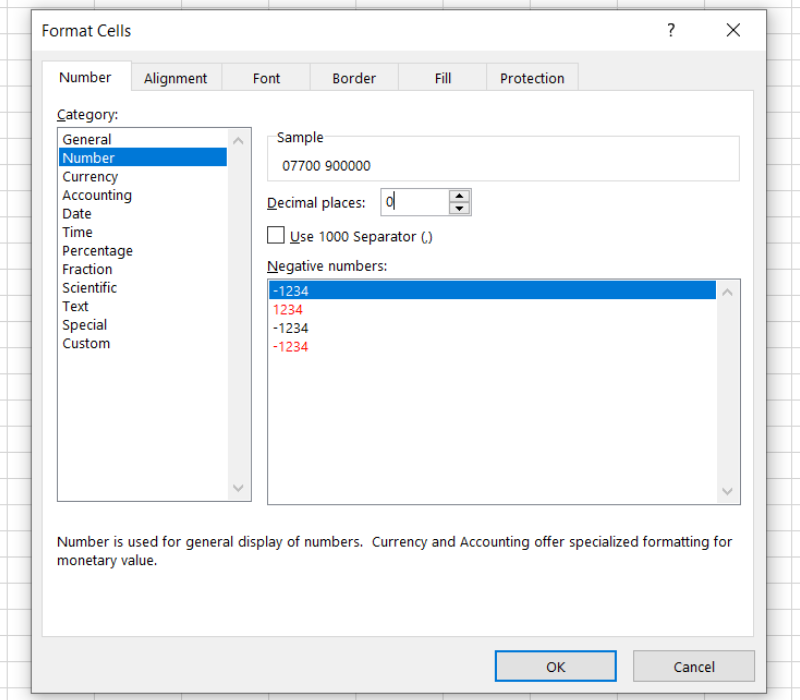
- Select the column with your numbers in it and right-click, then select ‘Format Cells’.
- You will see a pop-up box, with several options down the left-hand side – you want to hit the ‘Number’ tab.
- Then where it says ‘Decimal places’, you want to set this to 0. As soon as you hit ‘OK’ your numbers will all be formatted correctly and ready to go.
We also explain this in our blog on how to stop Excel from changing your mobile numbers.
Ready to send your first campaign? Once your CSV is formatted, you can upload it to FireText. Start your free trial.
Now you’re ready to upload your contacts!
Once those final checks are done and you’re all ready to save, simply select ‘save as’ and hit the ‘CSV (Comma delimited) (*.csv)’ option.
Now you’re ready to upload them into the platform – and we have an awesome guide to uploading contacts that will explain step by step how to do this.
Sending to international numbers? Your FireText account is set up as default to send to UK numbers only. If you have an international account enabled with us, follow our formatting guidance below.
Key considerations when uploading to FireText
The platform is pretty flexible with formatting
As a note, excel may remove the first ‘0’. Don’t panic if this happens as the FireText platform can recognise any numbers uploaded in the format of 07, 447 or just 7***.
The system will also remove any spaces, or other characters too. (This includes the ‘+’ in ‘+44’) So, if you have a hyphen or even some of the numbers in brackets, the platform will still upload these as numbers.
One Excel sheet does plenty
A few last things to double-check is the number of sheets on your document. Ideally, you only want one. However, if there is more than one, you need to make sure it’s the first tab.
Sending internationally: converting numbers
As default, FireText accounts are set to send to UK numbers only. If do you have an international account enabled with us, you need to make sure all of your numbers begin with the right area code.
This is important. You’ll notice that when you enter your numbers into an Excel spreadsheet, Excel automatically removes the first zero. For a UK account, this isn’t a problem, as FireText will still count them as a valid mobile number.
However, an international account will count these as Russian mobile numbers (which begin with 7) if we don’t format them first.
We’ve got an easy formula you can apply to your spreadsheet.
- Make sure that all mobile numbers are running down one column
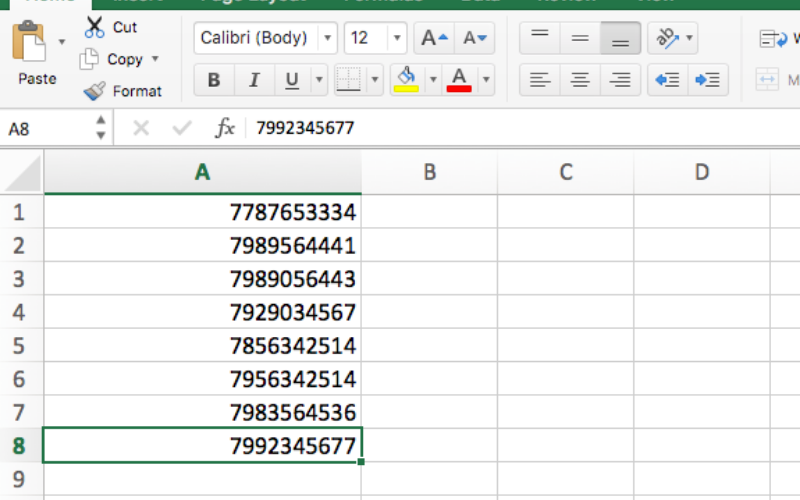
- Click the blank box in the column right of the first number (if you have more data alongside this, right-click the entire column and select ‘insert column to the right’).
- In this blank box enter =CONCATENATE(44,A1) and hit enter
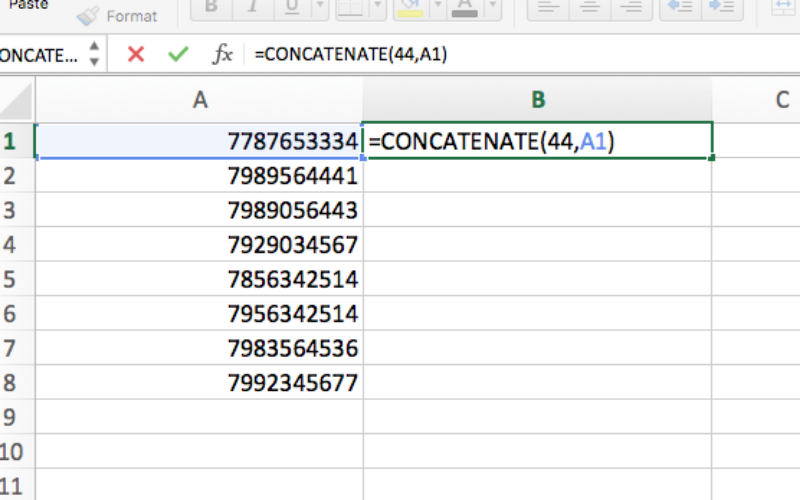
- Grab the corner of this box and drag down throughout all of the numbers going down the original column
- This will fill the new column with all of the mobile numbers, now including the 44 country code in front of them
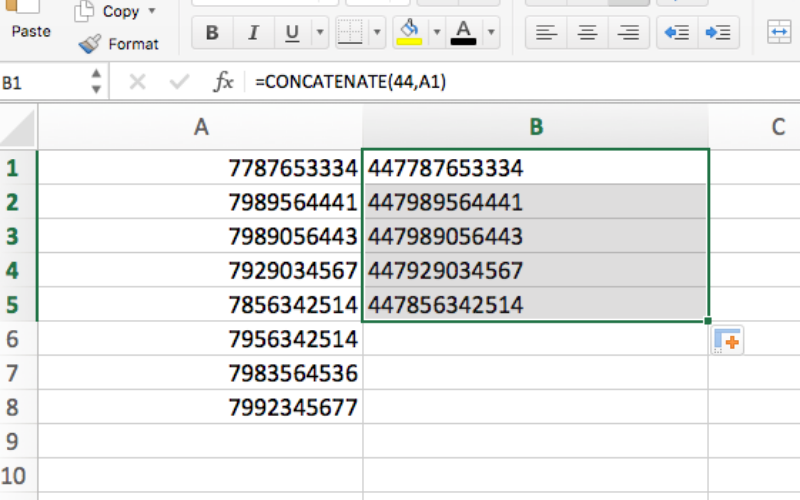
- Now copy this column and paste the values (paste special >> values) over the old column
- Save the file in a CSV format and you’re ready to upload your contacts to FireText!
Now you’re ready to craft your message and send out to your contacts. For top tips, check out our ultimate guide to SMS marketing.
Sending to international numbers? Your account needs international sending enabled. It’s a quick toggle to set you up. Talk to the team.
Frequently asked questions about formatting phone numbers in Excel
Why does Excel change my phone numbers to scientific notation? Excel treats long strings of digits as numbers and applies scientific notation (E+10, E+11) to anything over 11 characters. Formatting the column as Number with zero decimal places solves it, or you can format the column as Text before pasting in the numbers.
Why does Excel remove the 0 from the start of my mobile numbers? Excel strips leading zeros because they have no mathematical value in a numerical cell. For UK numbers this isn’t a problem – FireText recognises 07, 447 and 7 prefixes. For international numbers, use the CONCATENATE formula to prepend the country code (see the international section above).
What format should phone numbers be in for SMS marketing? For UK campaigns: 07, 447 or 7 followed by the remaining digits. For international: country code plus number, no leading zero. FireText strips spaces, hyphens, brackets and the plus symbol automatically.
How do I save an Excel file as a CSV for SMS upload? File > Save As > CSV (Comma delimited) (*.csv). Excel only saves the active sheet, so make sure your contact list is on the first tab.
Can I upload numbers that contain spaces or brackets? Yes. FireText normalises all of that before validation, so you don’t need to strip formatting characters manually.
